
title: Execute screen description: The big workout runner — phase, time, BPM, voice cues, and controls.
Execute screen
The most-looked-at screen in RhythmFit. Everything you need mid-workout without taking your hand off the bar or your eyes off the path.
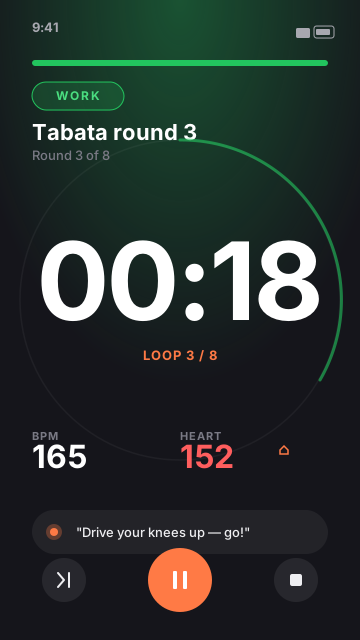
Anatomy
Phase name (top)
The current block's label — "Tabata round 3", "Push-ups 3-1-3", "Box breathing in". Color matches the phase color (warm-up orange, work red, rest blue, cool-down sky, learn purple).
Time remaining (center, large)
Counts down per block. The last 3 seconds switch to large high-contrast digits and the coach voice ticks "3 · 2 · 1".
BPM indicator (bottom-left)
Current metronome BPM. Tap to bring up the tempo override sheet — override applies to this session only.
Loop indicator
If the phase cycles through in-block reminders, you see "1 / N" showing which line of the cycle is currently being read.
Control row (bottom)
Left to right: Skip, Pause / Resume, End. Pausing also pauses the watch session.
What happens behind the scenes
Each workout moves through the same stages:
- Intro — plays the workout introduction (if any), then auto-advances.
- Teaching — reads the block's pre-block safety + technique cues, if it has any.
- Confirmation — waits for you to tap Got it, if the block asks for it. Otherwise auto-advances. A small Don't pause here next time row at the bottom of the notes card turns the wait off for that block — for later rounds and future sessions. Tap it again to keep the pause, or re-enable it any time in the workout editor.
- Running — metronome + timer + voice cues. The last few seconds embed a countdown.
- Paused — everything frozen. Watch session pauses too.
- Finished — celebration screen.
See Blocks and phases for the underlying model.
Gestures and shortcuts
- Tap anywhere on the time — shows a one-tap +30 s or +1 min extender for the current block.
- Swipe left on the phase name — preview the next block without ending the current one.
- Talk to Siri — pause, resume, skip, tempo, and status all work hands-free, including via AirPods. See Siri and voice commands.
The coach voice
Edge cases worth knowing
- A phone call or an alarm fires — the system audio session interrupts the workout. RhythmFit pauses automatically and resumes when the interruption ends. The watch follows.
- You lock the screen — audio and haptics keep going. The Lock Screen Live Activity shows the current phase.
- You background the app — same as above, the Live Activity continues and the metronome keeps ticking. Returning to the app rejoins the live state, no resync needed.
- Headphones disconnect — the metronome stays muted until you reconnect or tap the speaker icon to route to the phone speaker.