
title: Apple Watch setup description: Pair the watch, enable haptic metronome, and use it as a wrist controller.
Apple Watch setup Watch
The watchOS companion turns your wrist into a haptic metronome and controller. Basic controls and haptics are free for everyone — heart rate and rep counting require Pro.
Install the watch app
Confirm the watch is paired with this iPhone
Open the Watch app on iPhone. The currently paired watch shows at the top. If you don't see one, follow Apple's pairing flow first.
Find RhythmFit under Available Apps
In the Watch app, scroll to Available Apps. If RhythmFit isn't shown, the watchOS bundle hasn't downloaded yet — pull to refresh, or wait a minute.
Tap Install
The watch app downloads in the background. You'll see it appear on the watch's home screen with the RhythmFit icon.
Open RhythmFit on the watch once
First launch on the watch authorizes HealthKit and motion access. Tap Allow on each prompt — these stay on-device, never leave the watch except as live metrics for the iPhone session.
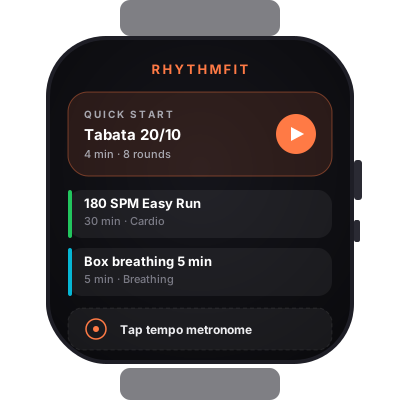
Starting a workout on the watch vs the phone
Two paths, same result.
Phone-initiated (most common) — start a workout on iPhone, and the watch automatically follows. Phase name, BPM, and timer all mirror across.
Watch-initiated — tap the RhythmFit complication (if you added one) or open the app on the watch. Pick a recent workout, tap start. The phone session can join after the fact if it's nearby — useful for phone-down treadmill or stationary bike work.
Haptic metronome
Every beat fires a single short tap on the wrist, matched to the current BPM. Two ways to use it:
- As your only feedback — mute the phone, leave AirPods at home. The wrist gives you the beat. Surprisingly effective for running, rowing, and jump rope.
- As redundancy — alongside audio. Helps in noisy environments (gym, outdoor traffic).
Pro features on the watch
Troubleshooting
- "Connecting…" never resolves — open both apps with screens unlocked, then put them within a few feet of each other for 10 seconds. Watch Connectivity handshakes once the OS notices they're both foregrounded.
- Haptics feel weak — increase prominence in iPhone Settings → My Watch → Sounds & Haptics → Haptic Strength → Prominent.
- Battery drains fast during sessions — turn off live heart rate if you don't need it.